Just last month designed some with full wrap around. Now it stops with a white seam….looks incomplete. Nothing helps it. Bring back the full wrap around
@Gaiarisa make sure you select Auto Warping Wrap option for your background color/design that will stop any seams (scroll down to select it before you start designing)
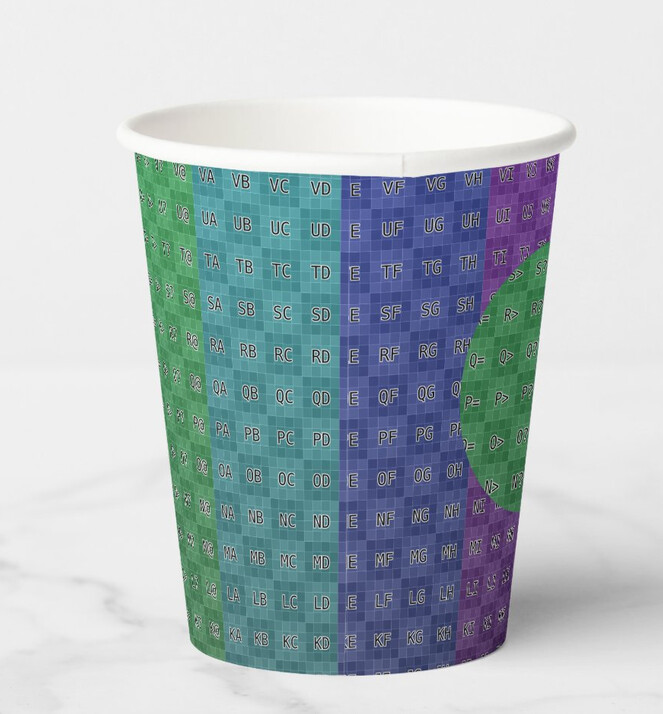
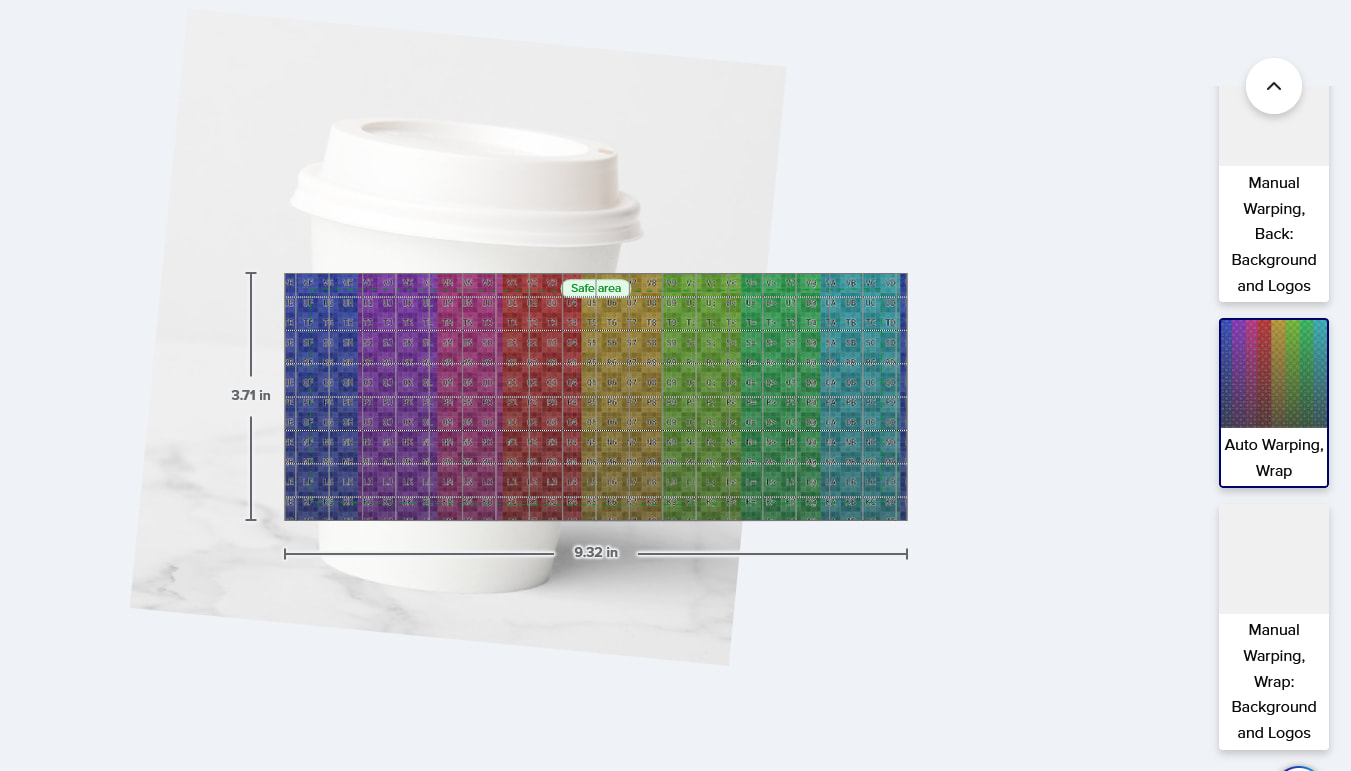
Though I do wish they would straighten up the paper cup in the Design Tool
Thanks @Sara_H,
I reported this to our engineers to investigate so hopefully this can be straightened up!
Pádraig
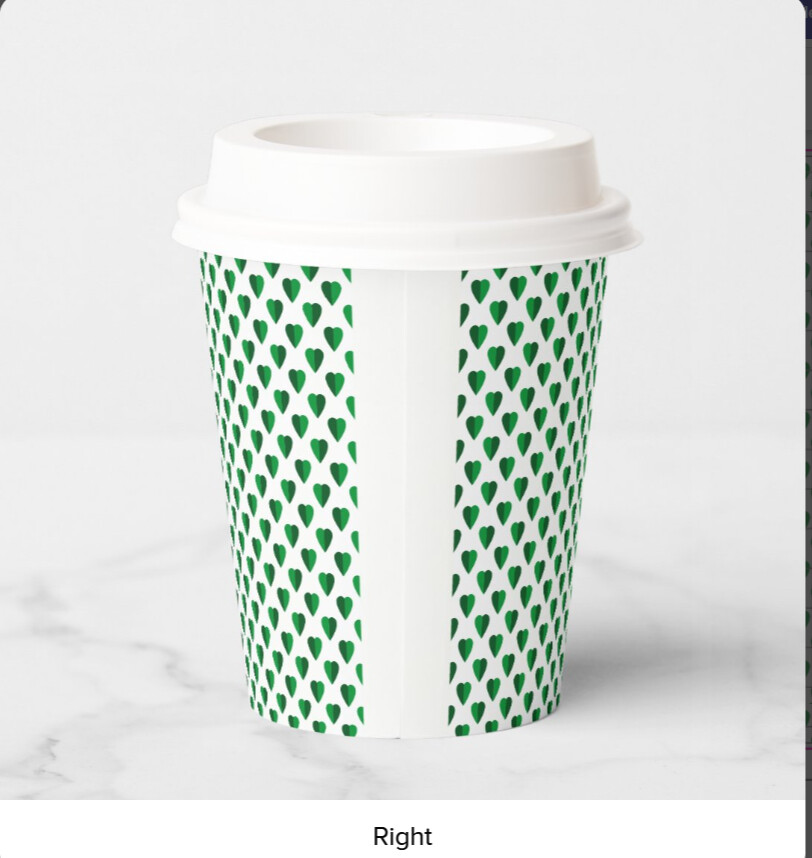
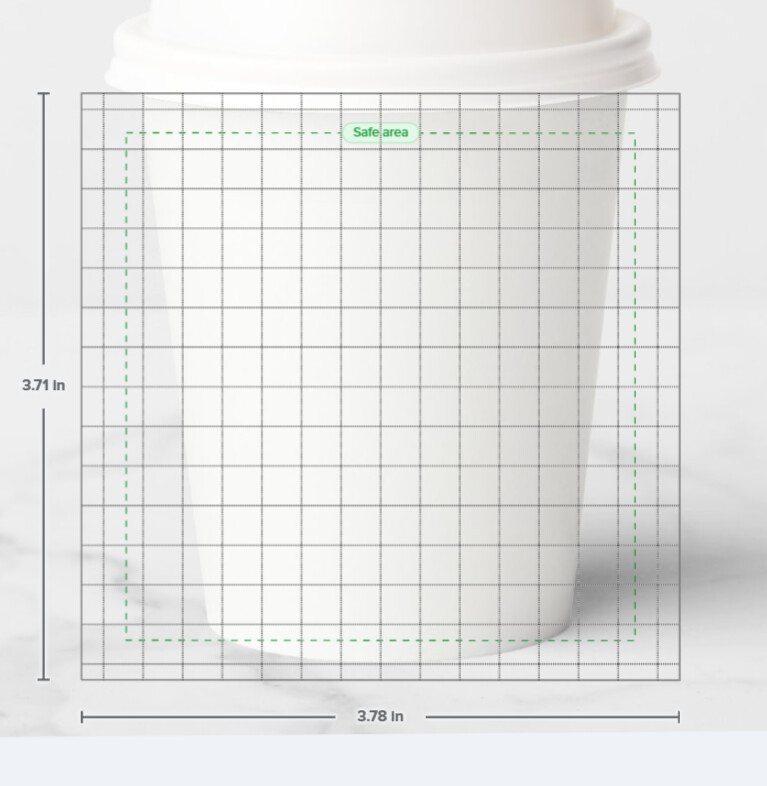
@Gaiarisa You need to be on a different view before you start = choose “Auto Warping Wrap” view on the right hand side of the design tool to add your background for all over without gaps
Click on “front” view (right hand side) and remove what you have already (repeat with back view) then click the Auto Warping Wrap and add your tile there.
edit to add screenshots
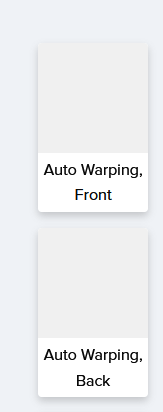
Don’t use these options (the ones that say Auto Warping Front or Auto Warping Back)
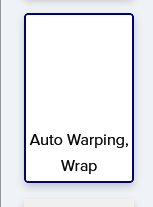
Use Auto Warping Wrap (it’s a rectangle when you select it not square)
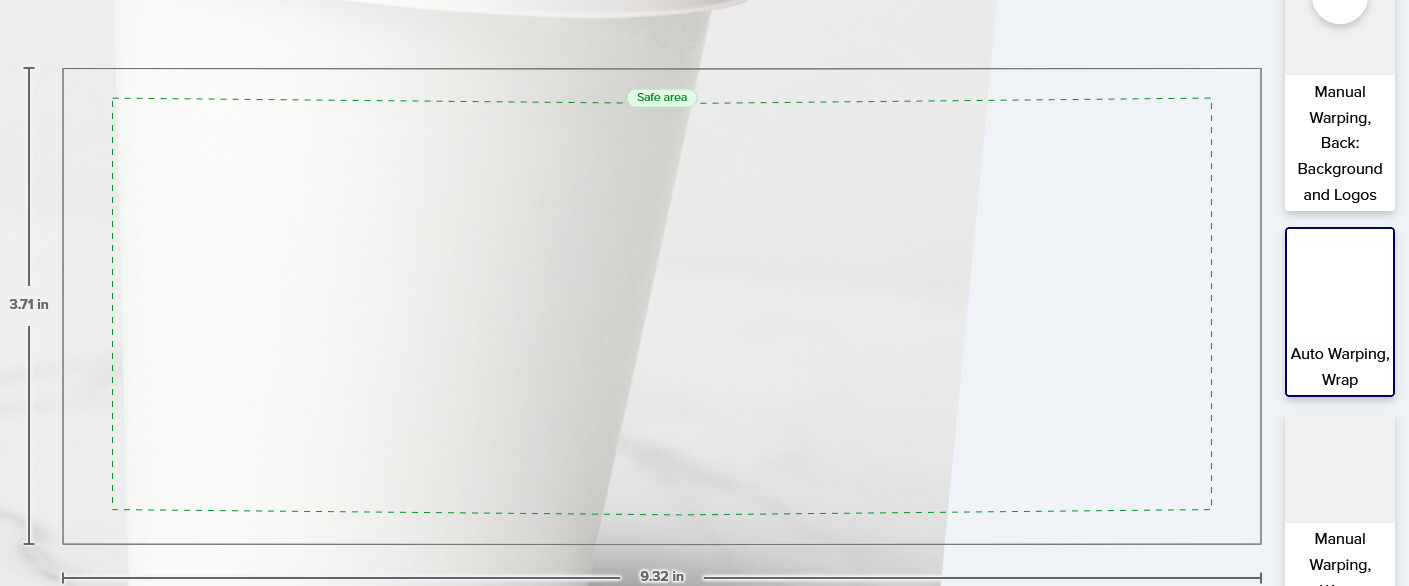
You need to scroll down until you see it
Thanks, yes those are the ones used: auto warp front; auto wrap back. The design area you posted is what I had prior month. horizontal rectangle. Now design area is a square and image leaves white band.
Thanks for your help, sensing design area changed. Going to ask support
@Gaiarisa The design area is square because of the view you have chosen (Auto Warping Front or Auto Warping Back)
The all over design area you need to select is Auto Warping Wrap. The Design area hasn’t changed - you need to select the correct view Auto Warping Wrap (the rectangle) for the white band not to appear.
Am sure support will say the same.
Good luck!