Settings –> Personal tab –> Personal Information –> Signature
Paste your text/html code in the signature box and click Save at bottom of page. Changes to your sig effect all past posts and are immediately visible.
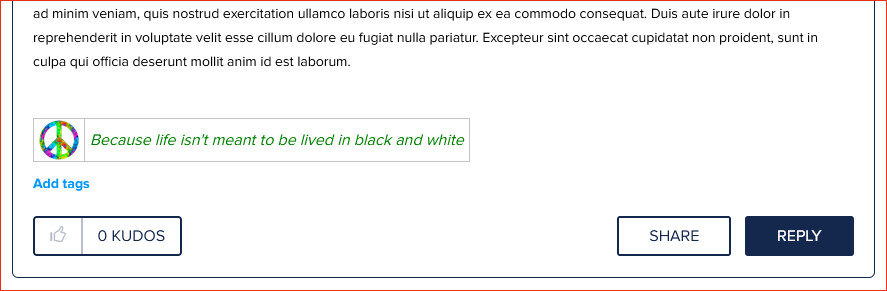
<table><tbody><tr><td><a href="YOUR LINK URL" target="_blank"><img src="YOUR IMAGE URL" alt="PeaceSign Icon" title="Click to Visit My Website" width="40" /></a></td><td><font size="3" color="green"><i>Because life isn't meant to be lived in black and white</i></font></td></tr></tbody></table>
Seems there is a maximum height for sigs. Somewhere between about 45-50 pixels. Higher than that, the bottom is cut off. I couldn’t find a way to make thing stay linear without using a basic table and I tried a bunch of thing to get rid of the border but couldn’t. Basic HTML isn’t hard. Trying to conform it to the unknown properties of the sig box IS hard, LOL.
If anyone has a template to share, please add them to this thread. Will be a handy resource for folks who want a quick sig without struggling over code.
P.S. - the posting box is awfulwith line breaks and spaces between lines. It’s almost like every time you preview, it adds more spacing. I don’t know. I spent more time trying unsuccessfully to get rid of all the extra space in this post than I did on the sigs. UGHHH
To have your signature links open in a new window, add the bit in red in the example link below. Contributed by @shellifitz in another post. But I thought it might be helpful to have it here too.
<a href=“add your website URL here” target=“_blank”><font color=“add the color you want here”><b>add your signature here</b></font></a>
@ColsCreations Thanks for this post! I will have to try out the social bar sometime in the near future. Is your .zip 1 solid bar or can each individual social be pulled out of it and used individually?
I know NO HTML, but I do find that in many cases I can type what I want in the WYSIWYG box (the box into which I am now typing). Then I change the configurations using the buttons provided in the box. Then I click HTML and I can see the entire HTML code for what I just made. So now I just copy everything in the HTML box and paste it into either a macro, or into my signature link.
This does NOT work in all cases, most notably with the signature, which also gave me fits, just as you describe here. But I did make all my macros that way.
It’s the forum. Sorry, I hadn’t checked downloading it directly from my post. From anywhere else there is no problem downloading it - just click the link and yes to download. The forum is apparently protecting us from potentially dangerous downloads by throwing up a warning message saying the download of the .zip is not allowed because yadayadayada. However, I just clicked the button that basically said “I understand, download anyway” and it downloaded.
You can also right-click the link in my original post, choose “copy link”, then paste it into your address bar, enter/go - and accept the download. Since you’re not downloading it directly from the forum that way, there’s no issue.
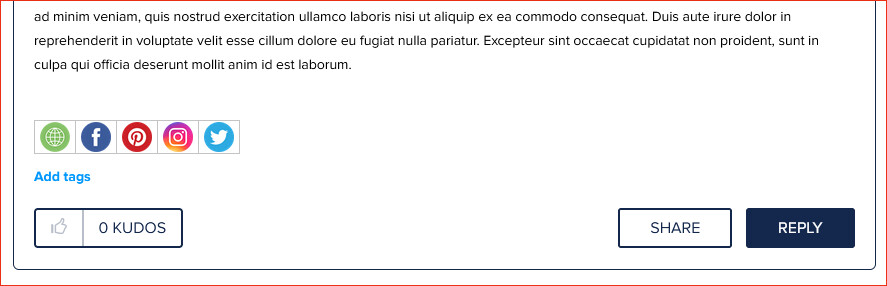
But, since it may be easier for people, here are the 7 .png icons in the .zip:
Click them, it’ll open the forum photo viewer and from there, there’s a download button on the lower right.
target=“blank” is included in my template codes. Some people find links opening in new tabs annoying but I am a big believer in it and always use it for off-site linking. I don’t want to send people away from whatever page of mine they’re on, too easy for people to get distracted with that content and not come back. And if they do use the back button to get back to my site, it has to load again and they’ve lost where they were at.
The .zip is 7 individual .png icons so one can use just whichever they need. (In the code, just delete the <td>…</td> for whatever you don’t need.) See above reply re issue with downloading the .zip directly from the forum and for the individual icons you can download separately.
WYSIWYG (What You See Is What You Get) composition is a wonderful thing. For the perfectionists & control freaks among us, having the ability to also work with the raw code is a real boon. But the HTML box here in the forum that lets you edit your raw post is pretty wonky to work with. The post might look OK but then you hit Preview and whoa, now there’s extra blank line spacing you didn’t want. Go back to composition mode, delete the spaces. Preview - nope, now they’re back and even bigger. So go into HTML view and manually adjust the <p>'s and <br>'s until it looks as desired in compose view, but then Preview is full of even more spaces. I actually copied the whole raw HTML of my orig post to my own editor, adjusted to deal with the spacing and pasted back into HTML box. Looks right in compose mode but on preview - bam! - the unwanted spacing comes back and seems like every Preview generates more spacing that then has to be removed. So its a circle you can’t beat. I spent more time going back and forth on this last night, copying & pasting and previewing & editing again and cursing at the screen then I’d like to admit before giving up. Shouldn’t be that hard to get a simple line break or space (ONE) between lines. </end rant>
That’s exactly what I was running into, and also I could not use the editor box here to have a colored linkable sig, so that I had to grab from one of the instruction posts people have been putting up.
Thank you very much for the instructions. I had tried with my limited knowledge to put in a link and it wasn’t working. I’ll give your templates a try later.


 _ Much _ easier! 🌹