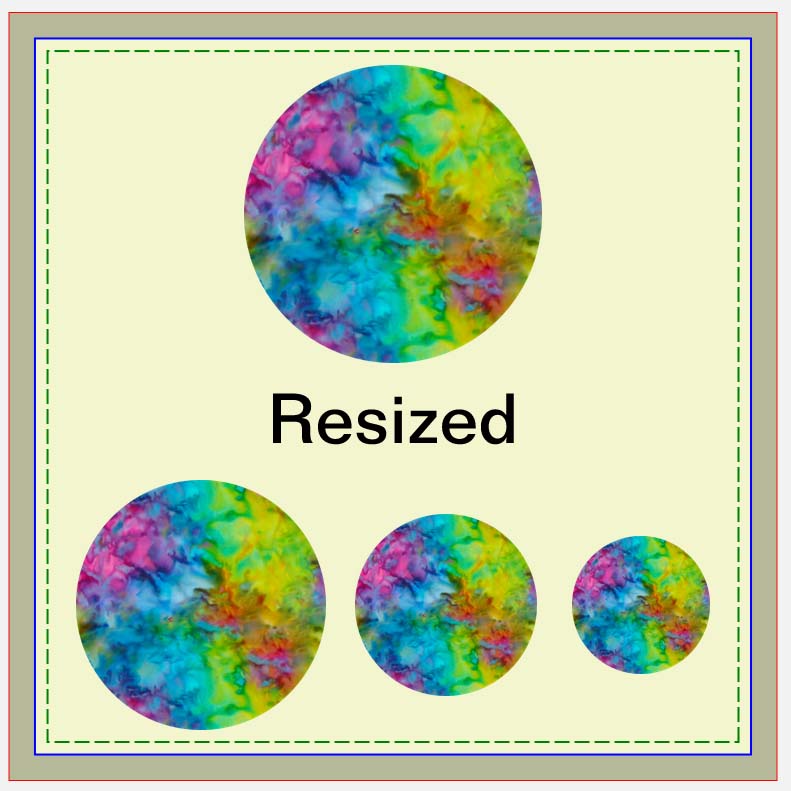
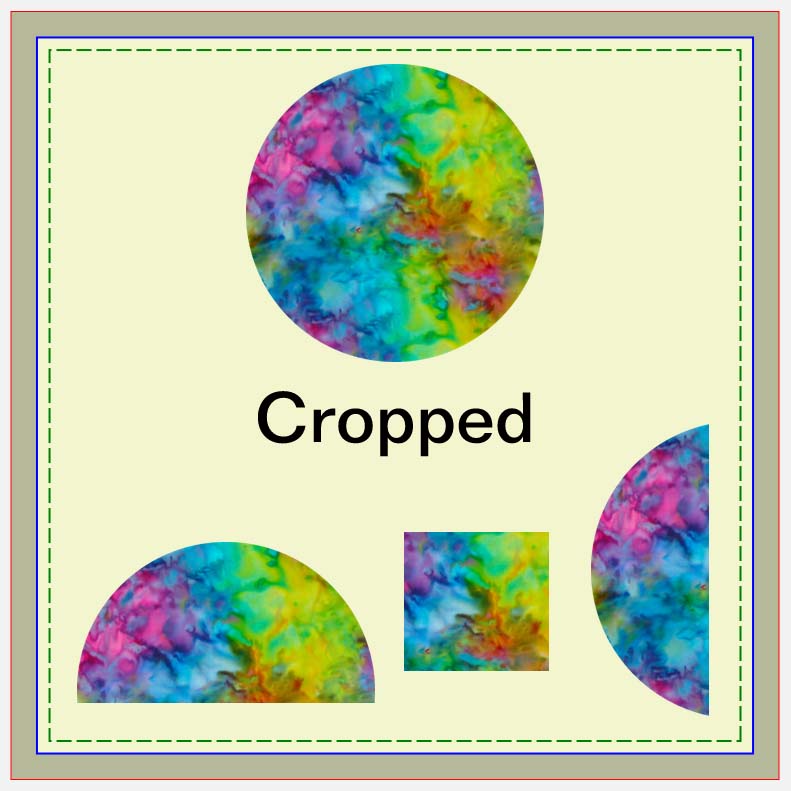
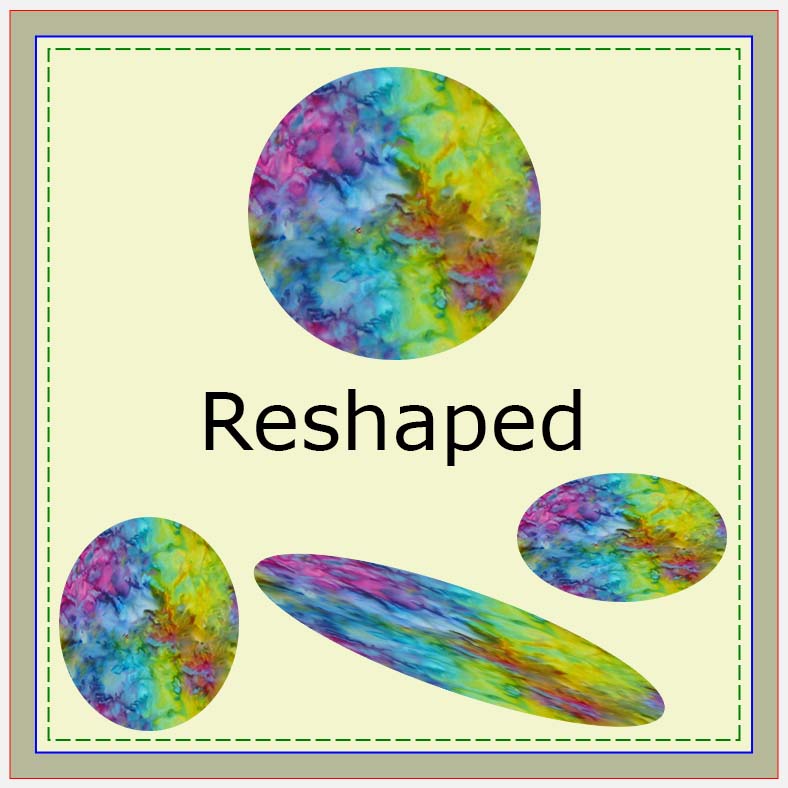
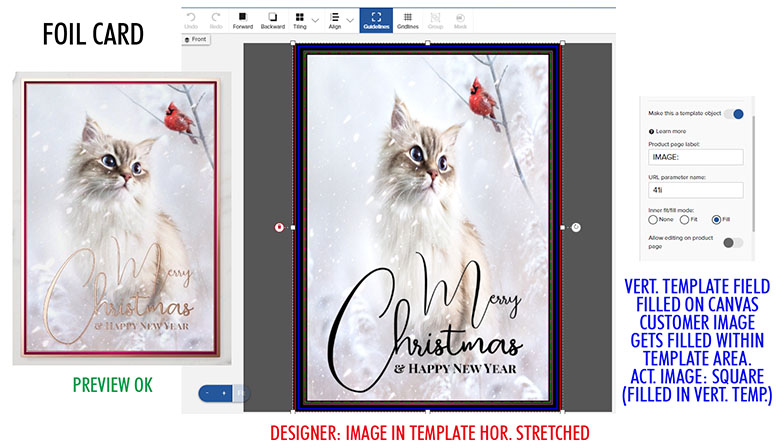
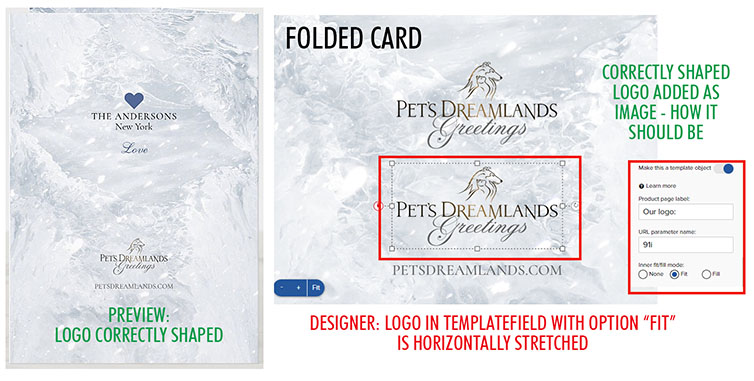
I honestly do not know if this is not functioning properly for me (Firefox on a Win10 laptop) or if it’s the language being used tripping me up. To me, resize, crop, and reshape are three distinctly different things with “reshape” meaning you’re stretching or smushing the image and thus deforming it in some way even if it’s intentional.
In the Design Tool, I can resize and I can crop but I can’t reshape regardless of the key combinations used. It occurred one time by accident and I posted about that here including screenshot, but A) I can’t make it happen again on purpose with any image and B) though it’s horizontally stretched in the Design Tool the product preview doesn’t show it that way. This is a link to the test product shown in that screenshot so you can see how messed up the preview is compared to the design tool view. (More than just that one image is messed up.)
So, I don’t know if I am supposed to be able to actually reshape images with this new feature, or if Zazzle is using “crop” and “reshape” as interchangeable terms leading me to believe we can do something we can’t actually do. And if you do actually mean reshape - as in deform the image - then either I am missing a key step to make that happen or it’s just not agreeing with my browser.
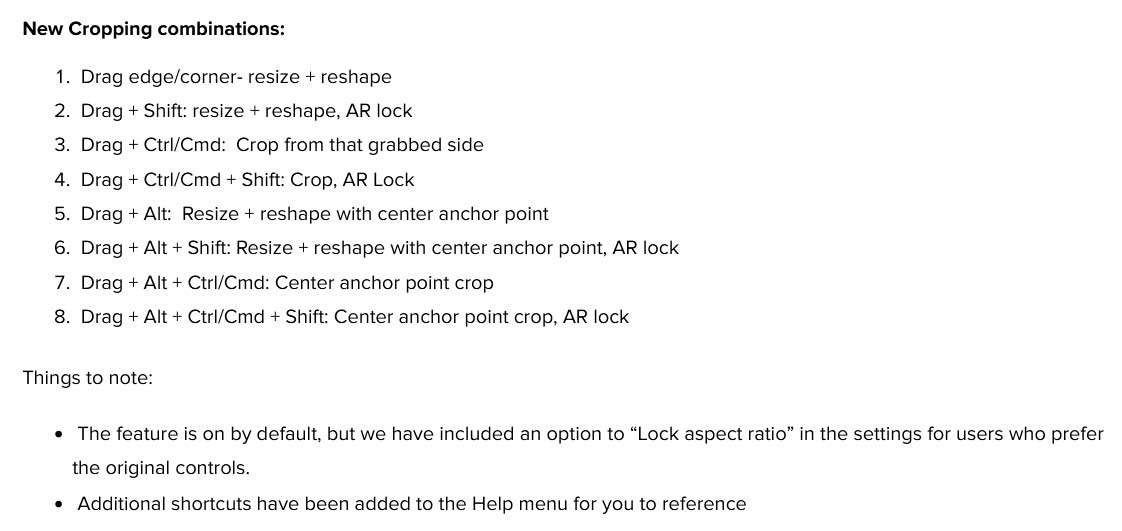
Next, I’m sorry but this is way too much to have as the default operations:
Even expert experienced Creators are going to need a cheat-cheat to remember what does what. The average internet user (i.e - potential customer) probably has an instinctive understanding by now that drag handles on something = being able to change the size of it. Period. It is my opinion that this is going to cause major and totally unnecessary frustration so I am vehemently against this bag of tricks being the default way of operation.
Even if a determined customer enters the Design Tool to tweak their image to better fit the design they chose, gets frustrated by unexpected things happening to the image, and chooses to actually look at the Help option - there is no help there, just an overwhelming list of Shortcut keyboard combinations, which remains the same whether you have Locked Aspect Ratio checked or not in settings. Which leads to needing to know to click Settings and then check Lock Aspect Ratio for operations to return to normal basic drag-to-resize behavior. The option needs to be labeled clearer, like “Activate Advanced Resizing Mode” or something, and then if you’re in Basic Mode, show only the shortcuts that actually apply to that mode in the shortcut list.
Creators who frequent the forums will perhaps notice and learn all this but everyone else including potential buyers will not. Whatever else you bring to this new advanced feature, just please set it as an option the user will knowingly have to check, and not as the Default.