ZAZZLE DEVELOPERS: You could make this a whole lot easier for your creators. You provide the code automatically when our products are created. Please give us a way to access web embedding code _ after our products have been published _.
Thanks for the responses given, thus far. In reading the thread linked by @PacifierCity , it seems there may be no direct way of accessing the HTML embed code at the present time … except when you first create each product.
However, the post on that thread by @@WHS_Designs , got me to where I needed to be. It is not automatic by any means, and you may need some working knowledge of HTML and how to access code source via your browser.
For those who dare to try, I offer the steps I took to customize the existing embed code from one product and apply it to another. You can copy the code I provide and replace the links to your product and product image to make it your own. I also took some steps to make the snippet and the image responsive. See below.
Step 1: Copy the template code, below. Paste it into your HTML or text editor of choice.
<a href="INSERT-PRODUCT-LINK-HERE" rel="nofollow" >
<img src="INSERT-PRODUCT-IMAGE-LINK-HERE.JPG?rlvnet=1&bg=0xffffff" alt="INSERT PRODUCT TITLE HERE" style="border:0; width:70%; padding:10px;" />
</a>

<br />

<a href="INSERT-PRODUCT-LINK-HERE" rel="nofollow">INSERT PRODUCT TITLE HERE</a>

<br />

by <a href="https://www.zazzle.com/store/YOUR-STORE-NAME" rel="nofollow">YOUR-STORE-NAME</a>
</div>
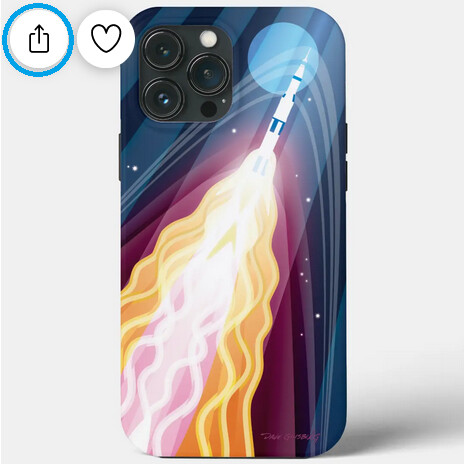
Step 2: Open a page for one of your products that you want to embed on another website. Then click the “share” button in the upper left corner of your product image. (Circled in blue, below)
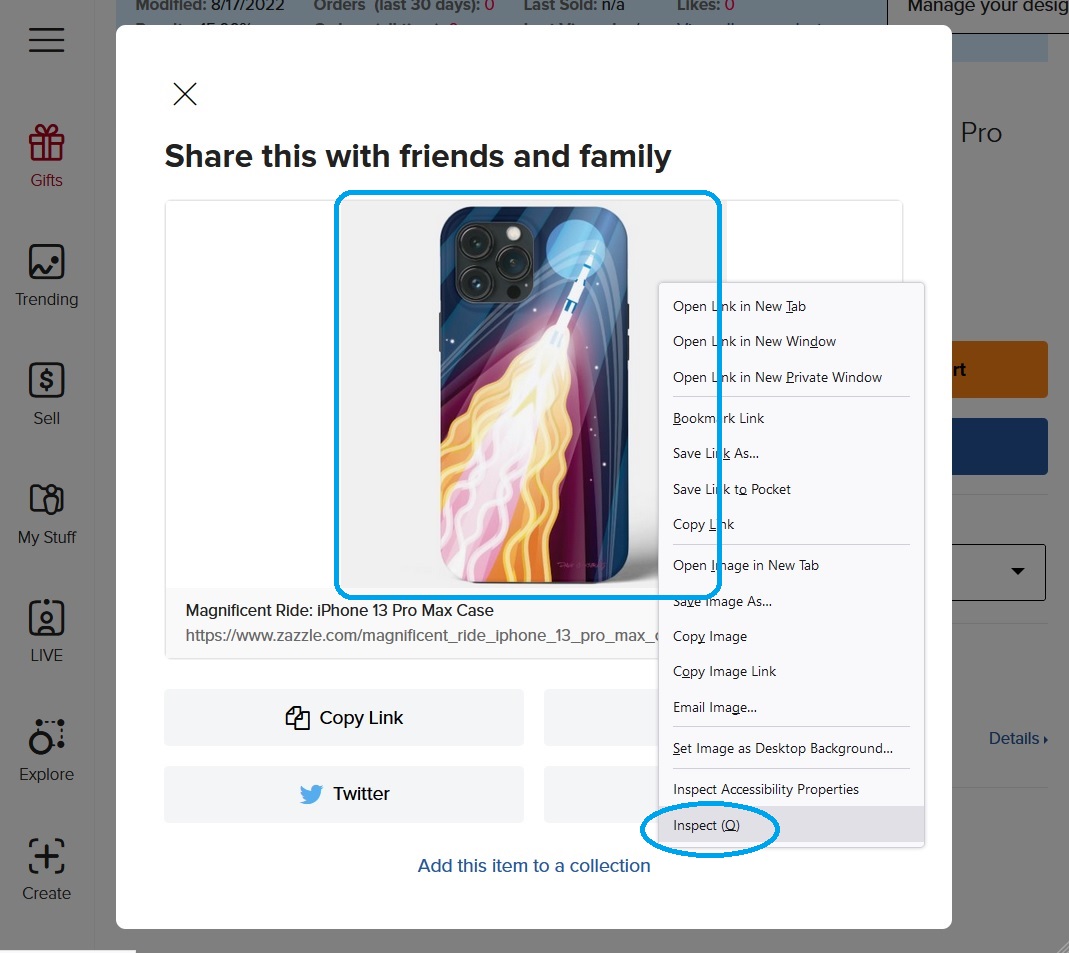
Step 3: Click the “Copy link” button in the popup window. (Circled in blue, below)
Step 4: Paste the copied product link in TWO places in the code template code where it says, " INSERT-PRODUCT-LINK-HERE".
Step 5: Type the title of your product in TWO places in the code template where is says " INSERT PRODUCT TITLE HERE".
Step 6: This example is for Firefox browsers on desktop. If you have a different browser, either use its “inspect code” feature or “view source”. The nice thing about Firefox’s “inspect” utility is it takes you to the proper place in the code automatically.
6A: Right click on the product image in the same popup window that provided the “copy link” button.
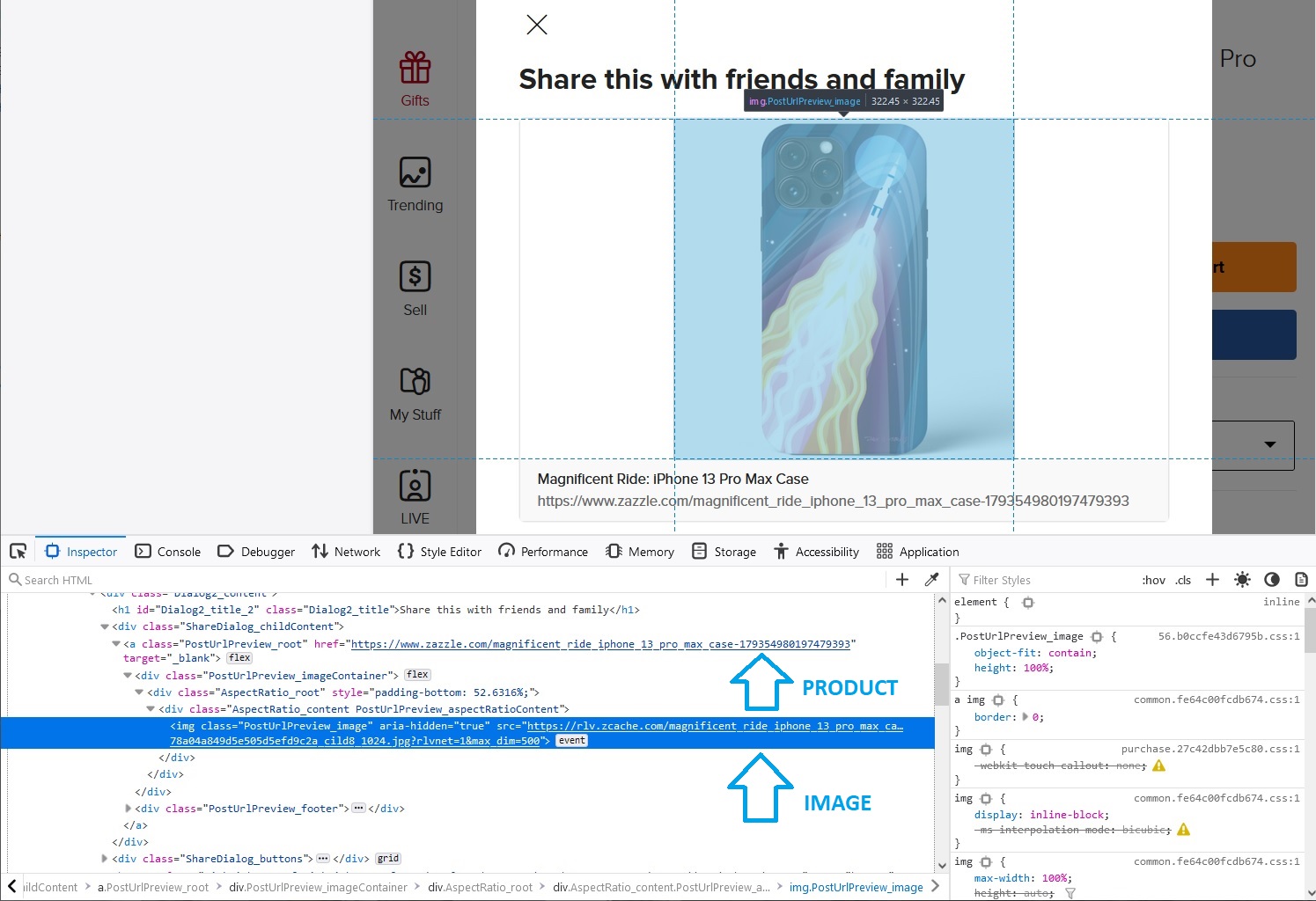
6B: This will open a code window (below) with the link to the product image highlighted.
6C: Copy the link up to the “.jpg” text. Omit the “?” and everything else after. Paste it into the code template where it says " INSERT-PRODUCT-IMAGE-LINK-HERE". Be sure the “.JPG” (with the dot) immediately follows the image URL code snippet.
Step 7: Type your store name in TWO places in the last like of the code template. Use the name in your store’s URL. In my case, my store URL is https://www.zazzle.com/store/pixelplanetpics so I would type “pixelplanetpics”. Do not use the long form name of your store, which is in my case, “Pixel Planet Pictures”.
Step 8: Save your edited code template and paste it into your website’s code where desired.
NOTES: The code template includes basic responsive web accommodations and some decorative elements. Modify to suit your needs.
> The code template has a built in margin and a black border. (First line: margin:70px; border:1px solid #000
> The Zazzle original code, from which the template was created, specifies a color in the image code. I am uncertain what this does, but I have changed it to white (Second line: &bg=0xffffff).
> To support responsive web design, I have set the image width to be 70% of its container width and specified a padding of 10 pixels. (Image code line: width:70%; padding:10px;)
If you’ve made it this far and ended up with a successful result, congratulations! If it is not working for some reason, please let me know in this thread. It is entirely possible that I might have committed a typo or two.
ZAZZLE DEVELOPERS: You could make this a whole lot easier for your creators. You provide the code automatically when our products are created. Please give us a way to access web embedding code _ after our products have been published _.