New Feature Alert: Frames!

Hi Creators,

Here’s a dedicated thread to leave us feedback about the new feature we just launched, frames!

Check out our recent article to learn all about it:

https://community.zazzle.com/t5/creator-news/new-feature-alert-frames/ba-p/206434

Thank you!

Team Creator 

12 Likes

Lots of interesting options. I like that we can change the aspect ratio on many of them.

Will customers be able to adjust the placement of their photo without going into the design tool?

5 Likes

Frames are under Elements–so might be to everyone’s advantage to read what the royalty is for frames.

<https://help.zazzle.com/hc/en-us/articles/360037785973-Zazzle-Ambassador-and-Creator-Royalties-and-Referrals>

2 Likes

QUOTE:  Can I make my own custom Frames?
Not at the moment. END QUOTE

We have always been able to make our own custom frames.

1 Like

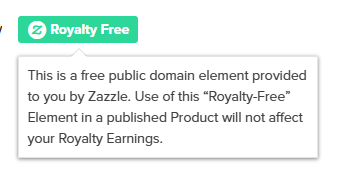
@idraw   according to the label the frames are royalty free with a drop down that says 

“use of this “royalty-free” element in a published product will not affect your royalty earnings”

8 Likes

@Windy   I think you can still upload your own svg to use as your own frame and then mask an image as before  - I don’t think that’s changed (could be wrong though)

5 Likes

I wondered this too. I tried to mess around with a card I made and didn’t see an option for that.

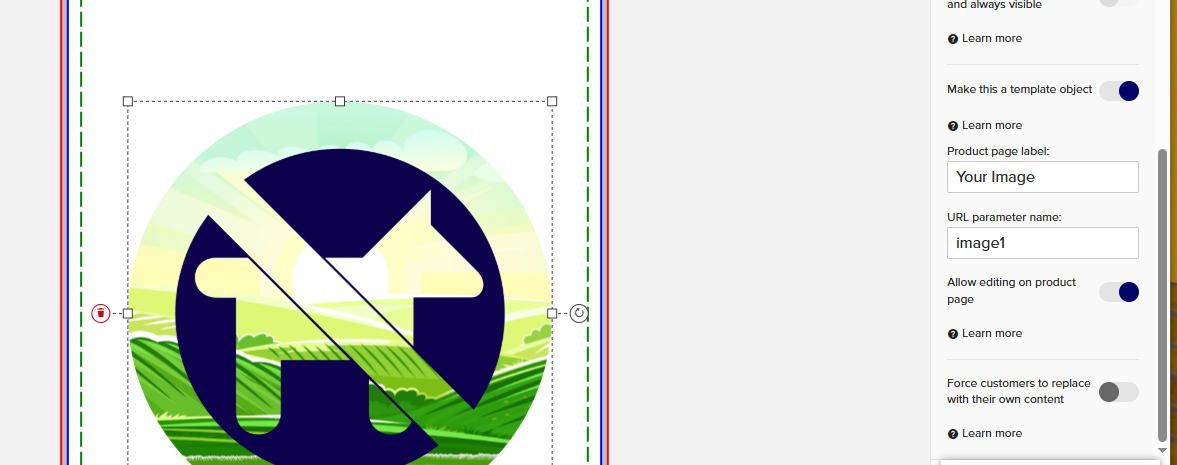
@KeegansCreation   @wheresthekarma  I’ve just tested one - you need to make the frame the image template (not the photo you add)

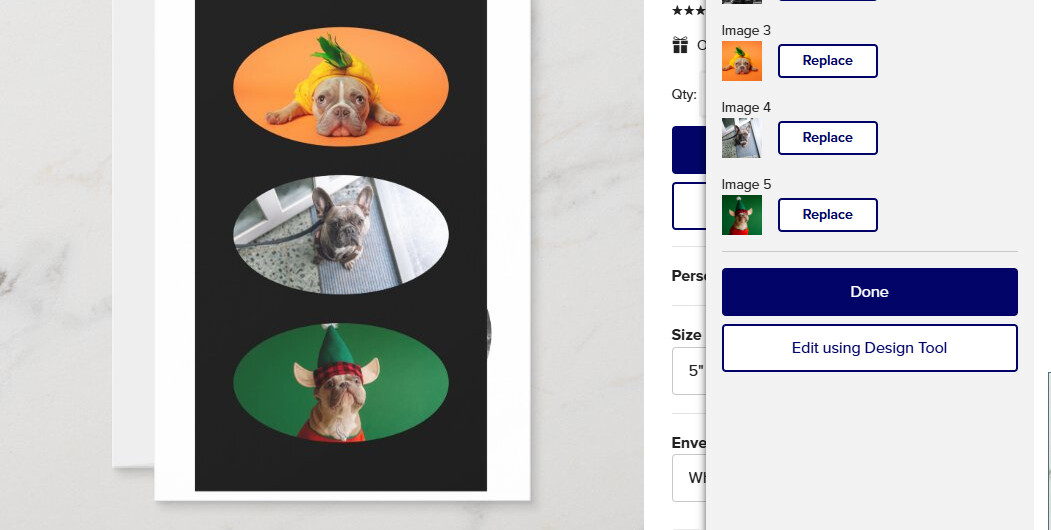
then once you’ve added an image for the customer to replace, as long as you’ve set “Allow editing on the product page” - it appears under personalize it without going into design tool

5 Likes

That’s good. 😀

1 Like

@Heather  

You may need to remove the three legged kettle grill silhouette as a similar shape is trademarked by Weber

8 Likes

This is an exciting addition! 

2 Likes

@KeegansCreation  How do you change the aspect ratio? I tried all sorts of things, but it keeps the same ratio.

I also don’t understand the black around the photos. I can’t change the color or use another framing design? Or better, remove the black altogether? Thanks for help!

1 Like

Pull on the sides or the top.

@KeegansCreation   Thank you! However, that does not work for me.
I am on Windows 10, Chrome.

Curious to test this one out… 

I can’t figure out how to change the position or size of the photo within the frame. Once it’s there, the photo seems inaccessible.

Colorwash's Home Colorwash on Benable   Benable invite link

1 Like

You can crop/resize/flip the photo using ‘Adjust Image’ (on the right side, under ‘Filters’).

4 Likes

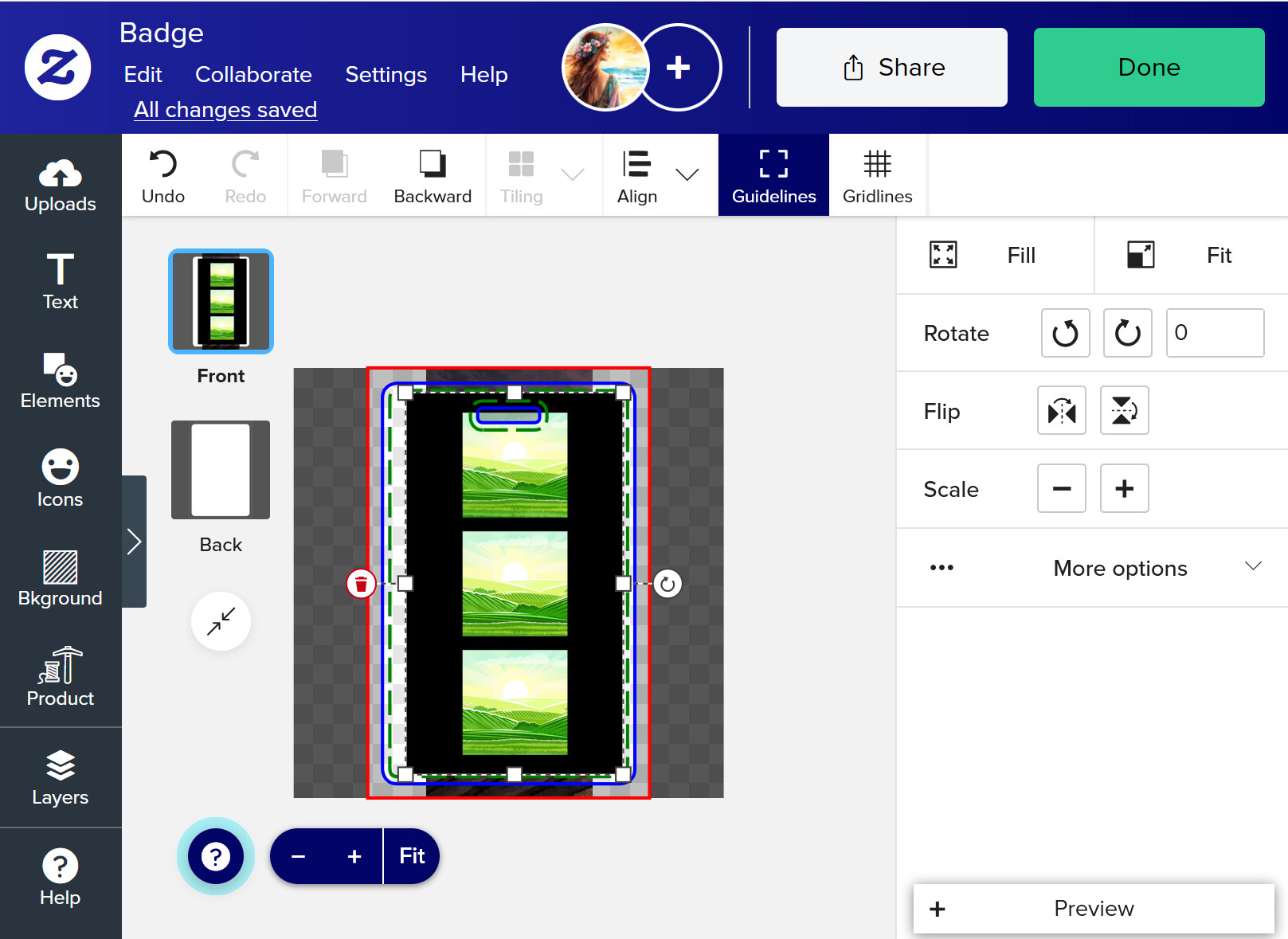
I tried the multiple frame, but don’t see an option to add an image anywhere:


Anne_1-1748964760109.png
I am just testing on a random product, in this case a badge. 
The single photo things seem to work fine, but I can’t get the multiple image to work.
So I get the basic frames to work but flowers and multiple images not.
Really excited about the ones that DO work though. This is a really great addition to the design tool, thank you!

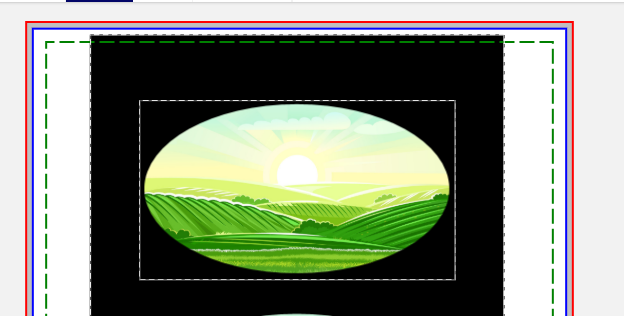
@Anne   Double click on the frame where the green image is and you’ll see a dashed line

then you should be able to add an image

rinse and repeat double clicking on the others and adding images - don’t forget with to make each frame a template object with each image added (eg - each frame within the multi-frame will need a separate image template)
Hope that made sense

2 Likes